 PRIME MOTION
The Design tools
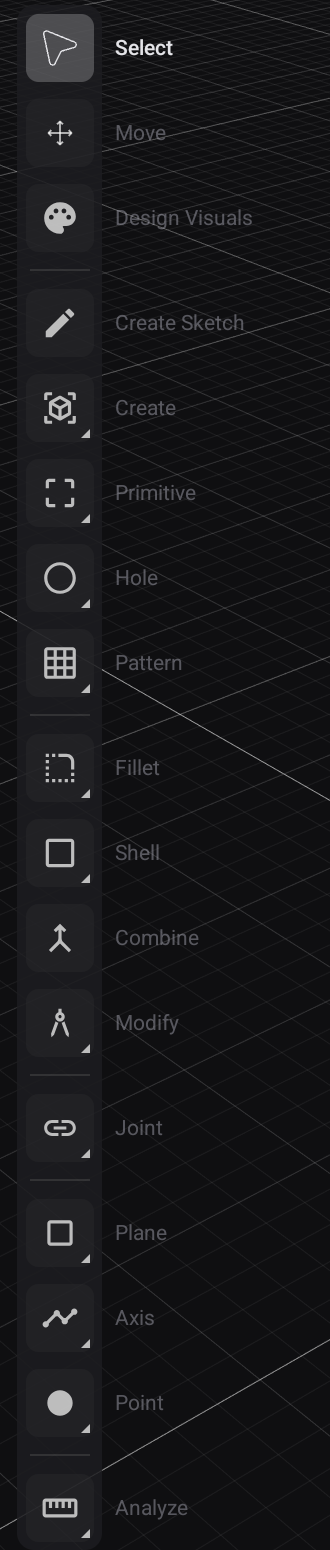
The rail is short on purpose. Everything you reach for constantly is one tap away, with no scrolling and no hunting — the toolset is deep, but the surface stays calm. What is behind each button is not short at all.
Every rail button is a family
Each button shows the tool you used last from its family, and a small corner mark means there are more inside. Long-press any button and its family fans out:
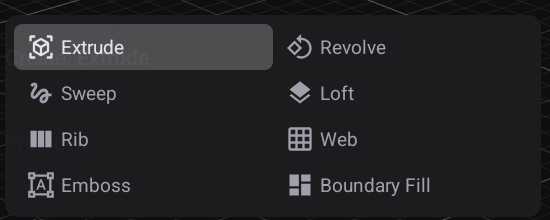
Tapping runs the tool shown; long-pressing picks a different one, which then becomes the button's face. So the rail slowly arranges itself around how you work.
Solid modelling — the full list
| Rail button | The family behind it |
|---|---|
| Select | — |
| Move | — |
| Design Visuals | Per-body colour and appearance |
| New Sketch | Start a sketch on a plane or face |
| Create | Extrude · Revolve · Sweep · Loft · Rib · Web · Emboss · Boundary Fill |
| Primitive | Box · Cylinder · Sphere · Torus · Coil · Pipe · Bounding Box |
| Hole | Hole · Thread |
| Pattern | Rectangular Pattern · Circular Pattern · Pattern on Path · Mirror |
| Fillet | Fillet · Chamfer |
| Shell | Shell · Draft |
| Combine | Boolean operations between bodies |
| Modify | Press Pull · Offset Face · Replace Face · Split Face · Split Body · Scale · Delete · Align · Remove Face |
| Assembly | Join · As-Built Join · Join Origin · Rigid Group · Motion Study |
| Joinery | Machinable Joint · Explode |
| Plane | Offset Plane · Plane at Angle · Midplane · Tangent Plane · Plane Through Three Points · Plane Along Path · Plane Through Two Edges |
| Axis | Axis Through Cylinder/Cone · Axis Perpendicular To Face · Axis Through Two Planes · Axis Through Edge · Axis Through Two Points |
| Point | At Vertex · At Center · Intersection · Along Path |
| Analyze | Measure · Interference · Section Analysis · Curvature Comb · Zebra · Minimum Radius · Centre of Mass |
Surface modelling — a different rail
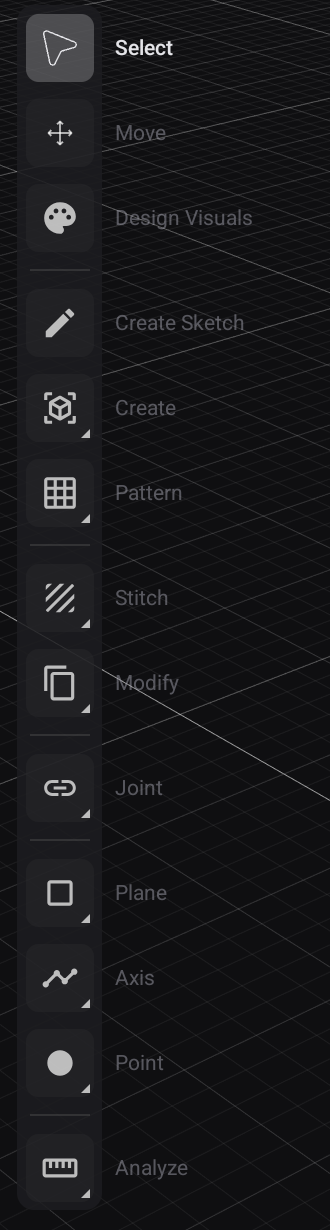
Long-press the Design workspace tab to switch between Solid Modeling and Surface Modeling:
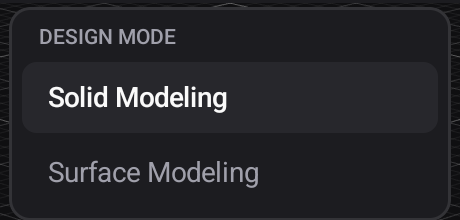
The rail changes with the mode, and so do the families inside the buttons that remain.
Gone entirely in Surface mode: Primitive, Hole, Fillet, Shell, Combine, Joinery.
New in Surface mode:
| Rail button | The family behind it |
|---|---|
| Stitch | Stitch · Unstitch · Trim · Reverse Normal · Offset Surface · Extend |
Changed inside:
| Rail button | In Solid mode | In Surface mode |
|---|---|---|
| Create | Extrude · Revolve · Sweep · Loft · Rib · Web · Emboss · Boundary Fill | Extrude · Revolve · Sweep · Loft · Thicken · Patch · Ruled · Boundary Fill |
| Modify | all nine | Offset Face · Scale · Delete · Align |
Unchanged in both: Pattern, Assembly, Plane, Axis, Point, Analyze.
Surfaces are how you build shapes solids cannot state directly — a flowing guitar top, a swept transition, a blended corner. Stitch sews surfaces into a closed skin, and Thicken (in Create) turns that skin into a solid you can machine.
Sketching — the 2D toolset
Sketching has its own toolset, and it is the largest of the three. The same long-press-for-family rule applies throughout.
| Tool | The family behind it |
|---|---|
| Line | Line · Midpoint Line · Line Between Points |
| Rectangle | 2-Point · 3-Point · Center Rectangle |
| Circle | Center Diameter · 2-Point · 3-Point · 2-Tangent · 3-Tangent |
| Arc | 3-Point · Center Point · Tangent Arc |
| Polygon | Circumscribed · Inscribed · Edge Polygon |
| Slot | Center-to-Center · Overall · Center Point · Slot Along Path |
| Spline | Fit Point Spline · Control Point Spline |
| Text | Text · Text on Path |
| Modify | Fillet · Chamfer · Trim · Extend · Break · Offset · Move/Copy · Mirror · Circular Pattern · Rectangular Pattern |
| Insert | Canvas · DXF · SVG · PDF · Scale |
| Constrain | Dimension · Distance · Coincident · Collinear · Concentric · Tangent · Smooth · Equal · Parallel · Perpendicular · Horizontal · Vertical · Symmetric · Midpoint · Fix/Lock |
| Projection | Project · Intersect |
| Measure | Measure |
Bringing in artwork
Insert places existing artwork into a sketch as a canvas you can trace, dimension against, or project onto the model: DXF, SVG, PDF, or an image Canvas, plus Scale to size it against a known dimension.
Related
- The Design workspace — drawers, the expression keypad, gizmos and live preview
- Parameters