 PRIME MOTION
Files and storage
Prime Motion imports G-code from three places. The chooser is the same everywhere files are brought in, so what you learn here applies in Projects, in Tools, and anywhere else the app offers to fetch a file.
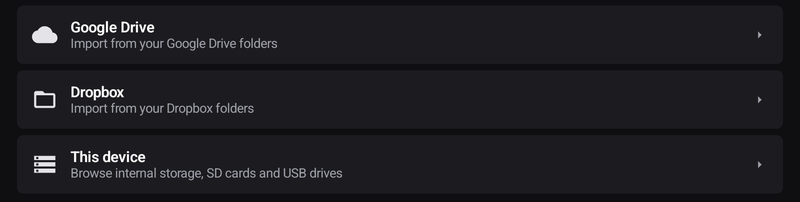
| Source | What it reaches | Sign-in |
|---|---|---|
| Google Drive | Your Drive folders | Yes — a Google account |
| Dropbox | Your Dropbox folders | Yes — a Dropbox account |
| This device | Internal storage, SD cards and USB drives | No |
Signing in to a cloud provider
Prime Motion never sees your password. You sign in on Google's or Dropbox's own page, and they hand this app a pass that lets it fetch your files. You can take that pass away at any time from your Google or Dropbox account settings, without changing your password. The pass is stored scrambled on this device, not as readable text.
How much of your Drive can the app see?
Less than you might expect, and that is deliberate.
Prime Motion can only see files it made itself, or files you picked yourself in the browser. Everything else in your Drive — your documents, your photos, folders you never pointed it at — is invisible to it. It cannot go looking.
This device
This device browses the storage this app is running on — internal storage, an SD card, and USB drives — with no account and no sign-in. It is the fastest route for a file you have just copied across on a stick, and the only route that works with no network at all.
Browsing a cloud source
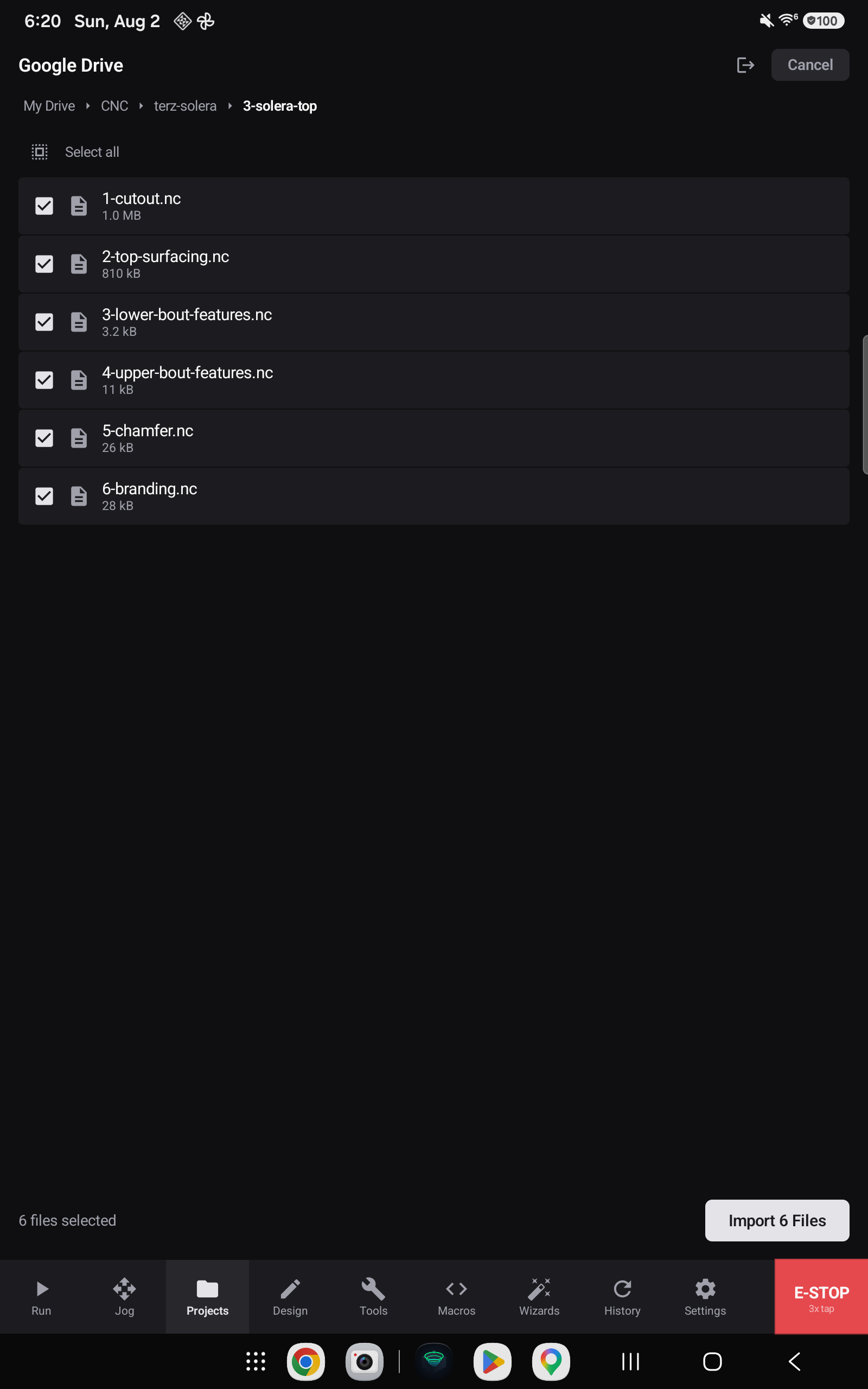
Signed in, the browser is a plain folder walk with a few things worth pointing out.
Breadcrumbs show where you are, with the current folder in bold. Tap an earlier crumb to jump back up.

Folders sort first, then files by name — so a deep tree stays navigable.
Files are listed with their size, and you tick as many as you want. The bar at the bottom keeps a running count and the import button names it, so there is no ambiguity about how much you are about to bring in.

Prime Motion accepts .nc, .gcode, .ngc, .ncp and .tap.
Sign out lives in the header, next to Cancel. It disconnects that account from the app.
What can be imported
Import reports each file's outcome individually rather than failing the whole batch:
| Outcome | Meaning |
|---|---|
| Imported | The file was added, with a count when several arrive at once |
| Duplicate skipped | A file of that name is already in the project; the existing one is kept |
| Unsupported type | The file is not G-code the app will accept |
| Import failed | The file could not be read or written |