 PRIME MOTION
Backups
Keep a copy of work you cannot afford to lose somewhere other than this tablet. Before replacing a device, uninstalling Prime Motion, or clearing its data, check what your copies actually contain.
A working design and a shared copy
Each design has its own .pmd working file. Your original design retains its modelling history and Manufacturing work on the device.
The Designs panel's Share command creates a separate .pmd export. That file includes the model, sketches, constraints, features, and parameters, but omits Undo history and toolpaths. The Share panel tells you this before export; the import summary tells the recipient again.
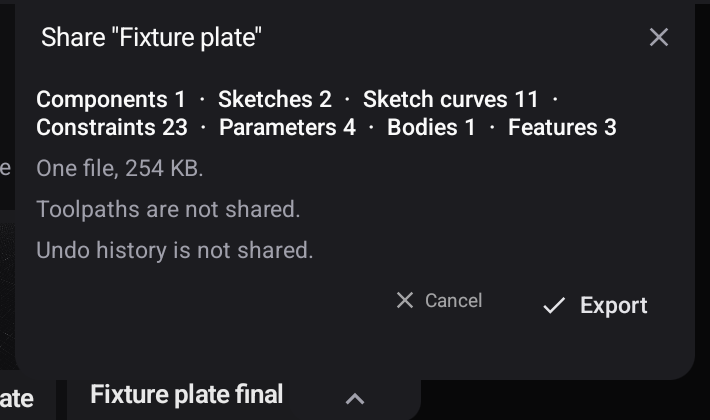
Use Import and export to make a shared copy and check its saved location. Open an imported copy to confirm the model is there before relying on it.
What to copy
| Work | Useful copy | What to check |
|---|---|---|
| Design model | A shared .pmd outside the tablet | Import a copy and check the part; history and toolpaths are omitted |
| Parameters | .csv or .json from Parameters | Keep the expressions and units with the job |
| Posted programs | The program files from the project | Keep the correct revision, tool information, work offset, and setup notes together |
| Imported artwork and geometry | The original source files | Keep the files you used for tracing or deriving the part |
| Custom tool information | A record of your cutter dimensions and chosen settings | Vendor catalog entries alone do not record the settings you proved on your machine |
A second file in internal tablet storage can still be lost with the tablet. Keep the copy on a separate device or removable storage you can access independently.
Internal storage and SD card
On a supported tablet with an SD card mounted, Settings → General → Design Storage offers Store Designs on SD Card. This chooses where the working designs live. Changing their storage location is not the same as keeping a second independent backup.
Keep the card available while working with designs stored there. Before removing it, finish your work and close the design. See Files and storage for choosing destinations for exported files.
Verify a copy before you need it
Check the file's name, location, and date after export. For an important model, import a separate copy and open it. For a posted program, keep the setup notes that identify the stock, cutter, work zero, and the program revision you checked.
If a design will not open or you are unsure which copy preserves the work you need, contact support@primemotioncnc.com before removing the original.