 PRIME MOTION
Touch, S Pen and the viewport
Prime Motion has two 3D views: the machine view on Control, and the model view in Design. Both turn, move and zoom with your fingers. In Design the S Pen does a different job: it draws and picks, while your fingers move the camera. Keeping the two apart is what lets you rest your hand on the glass while you work.
Moving the camera
| Gesture | Control | Design |
|---|---|---|
| One finger, drag | Turns (orbits) the view | Turns the view; moves it sideways when Lock is on |
| Two fingers, drag | Moves the view sideways (pans) | Moves the view sideways |
| Two fingers, pinch | Zooms | Zooms toward the point between your fingers |
| Three fingers, touch and lift | Returns to the isometric view | — |
Panning and zooming happen together in one two-finger movement, so you can slide and zoom without lifting. Touching the glass stops a camera animation that is still running.
On Control, the S Pen moves the view exactly like a finger. With Follow on, the view keeps pulling toward the tool, so your own sideways moves are overridden; turning and zooming still work.
The view cube
The cube at the top right shows which way you are looking.
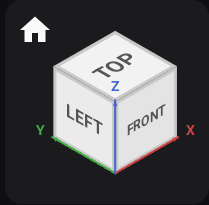
- Tap a face — TOP, FRONT, RIGHT and so on — to look straight at it. Distance and position are kept.
- Drag on the cube to turn the view.
- The house at the cube's upper left returns to the starting view. In Design it also turns Lock off.
- In Design with Lock on, two curved arrows appear beside the cube. Each tap turns the view a quarter turn in the plane you are looking at.
The S Pen in Design
In Design and Manufacturing:
- The pen draws and picks. Every drawing tool, every pick in a tool's drawer and every selection listens to the pen. A finger tap in the view does not select.
- Fingers move the camera. The pen never does.
- Your palm is ignored while the pen is down, and for half a second after you lift it, so a resting hand does not move the view. To turn the view right after drawing, lift the pen and pause briefly first.
Buttons, drawers, the tree and the workspace tabs respond to fingers as usual.
Hover
Hold the pen just above the glass, without touching, and Prime Motion previews what a tap would do:
- with nothing armed, the face, edge, sketch line or closed profile under the pen lights up;
- with a pick armed in a drawer, only geometry that drawer accepts lights up;
- a line tool shows the endpoint it would snap to;
- the constraint and modify tools tint the geometry they would act on, and Trim shows the part it would cut away in red.
On Control, hovering over a loaded toolpath shows a small label for the nearest move: its line number in the program, its feed in mm/min, and its Z height.
Selecting in Design
With Select active (no tool armed):
- Tap something to add it to the selection; tap it again to remove it. There is no modifier key: every tap toggles.
- Double-tap a body to select the whole body.
- Tap empty space to clear the selection.
- Drag a box with the pen, starting on empty space. Drag to the right to select only what is entirely inside the box; drag to the left to select anything the box touches. A box replaces the current selection.
When a tool is armed, its drawer lists each pick as a chip. Tap a chip's × to remove that pick; hover a chip to light up its geometry in the view.
Tap order
When several things sit under the pen, a tap takes the first that applies: a dimension or chamfer value, an edge, sketch text, a sketch line or point, a face, a sketch's filled profile, then a construction plane. Zoom in when the one you want is crowded by its neighbours.
Lock
Lock sits in the chip bar under the model, or in Sketch Options while you are sketching. With Lock on, one finger moves the view sideways instead of turning it, and dragging the cube is ignored, so the view cannot be knocked off a flat drawing. Two-finger panning and pinching still work, and tapping a cube face still works.
Starting a sketch turns Lock on and looks straight at the sketch plane. Finishing the sketch turns it off again.
Keyboard and mouse
Prime Motion is built for touch and the S Pen. A connected mouse behaves like a finger: dragging moves the view, but it cannot draw or pick in Design. The viewport has no keyboard shortcuts; in text fields, Enter commits and Esc cancels.