 PRIME MOTION
Machine profiles and the setup wizard
Before Prime Motion will do anything that moves a machine, it needs to know which machine. That is what a machine profile is, and the setup wizard is how you make one.
What Prime Motion supports
Any machine running Grbl or grblHAL. That is the requirement, and it is the whole of it. Controller firmware is what the app talks to; the frame around it does not matter.
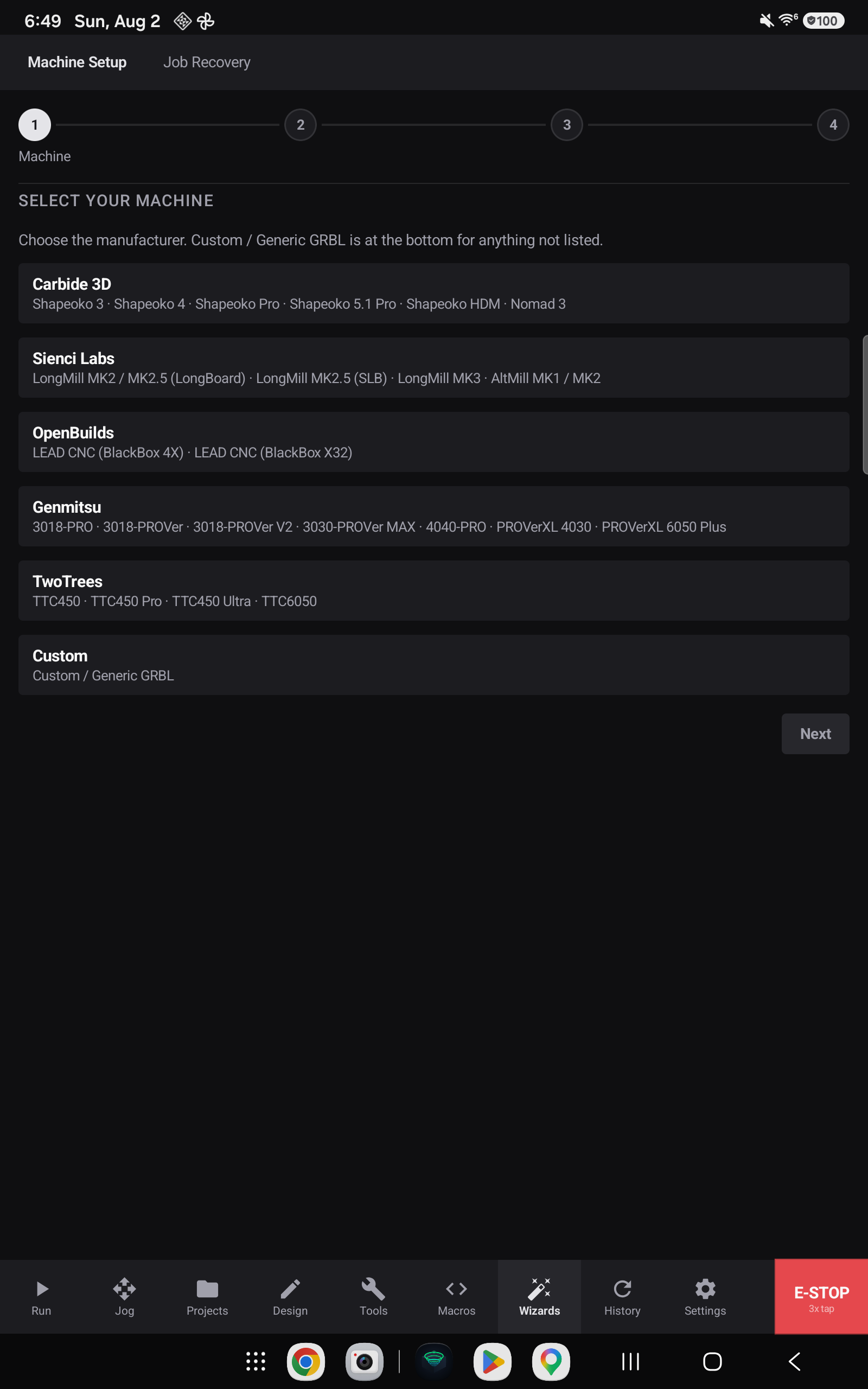
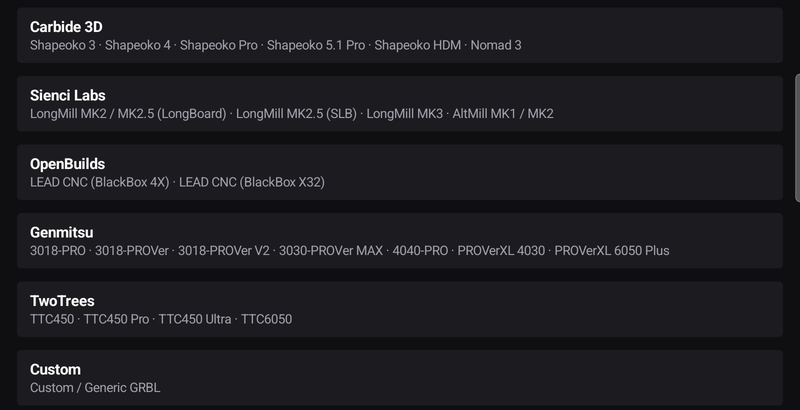
Six manufacturers are pre-configured, covering twenty-eight models:
| Manufacturer | Models |
|---|---|
| Carbide 3D | Shapeoko 3 · Shapeoko 4 · Shapeoko Pro · Shapeoko 5.1 Pro · Shapeoko HDM · Nomad 3 |
| Sienci Labs | LongMill MK2 / MK2.5 (LongBoard) · LongMill MK2.5 (SLB) · LongMill MK3 · AltMill MK1 / MK2 |
| OpenBuilds | LEAD CNC (BlackBox 4X) · LEAD CNC (BlackBox X32) |
| Genmitsu | 3018-PRO · 3018-PROVer · 3018-PROVer V2 · 3030-PROVer MAX · 4040-PRO · PROVerXL 4030 · PROVerXL 6050 Plus |
| TwoTrees | TTC450 · TTC450 Pro · TTC450 Ultra · TTC6050 |
| FoxAlien | Masuter 4040 · Masuter Pro · 4040-XE · Vasto · Vasto XXL |
Both firmware generations are handled, and the split does not follow manufacturer lines — two of these vendors ship both. Choosing a manufacturer lists its models with the firmware each one runs, and how many variants it comes in:
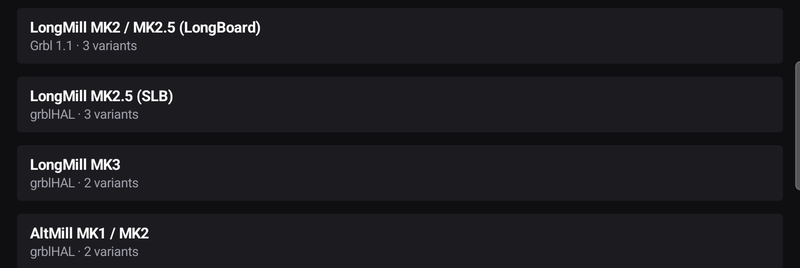
Most models run Grbl 1.1. The Sienci LongMill MK2.5 (SLB), LongMill MK3 and AltMill, and the OpenBuilds LEAD CNC (BlackBox X32), run grblHAL. The app recognises which it is talking to and behaves accordingly, so this is information rather than a decision you have to make.
Choosing your variant
A model listed with 3 variants comes in three configurations, and they are not interchangeable — each has its own travel. The wizard names them with the actual dimensions rather than making you decode a model code:
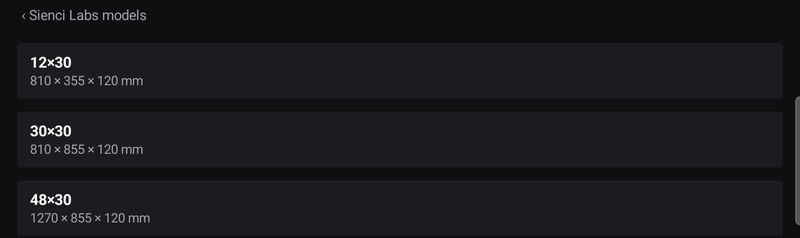
The note under the list

Each model carries a line about its controller, and it is worth reading. It names the controller hardware and firmware, how the app talks to it, and any quirk of that machine — dual-Y motors without auto-square, a router whose speed cannot be commanded in software, a setting that must not be changed on a closed-loop machine.
If your machine is not listed
Custom / Generic GRBL, at the bottom of the list, is for everything else — a machine from a manufacturer not named above, a self-built frame, a retrofit, or a controller swap.
Step 2 — check what it worked out, and add your accessories
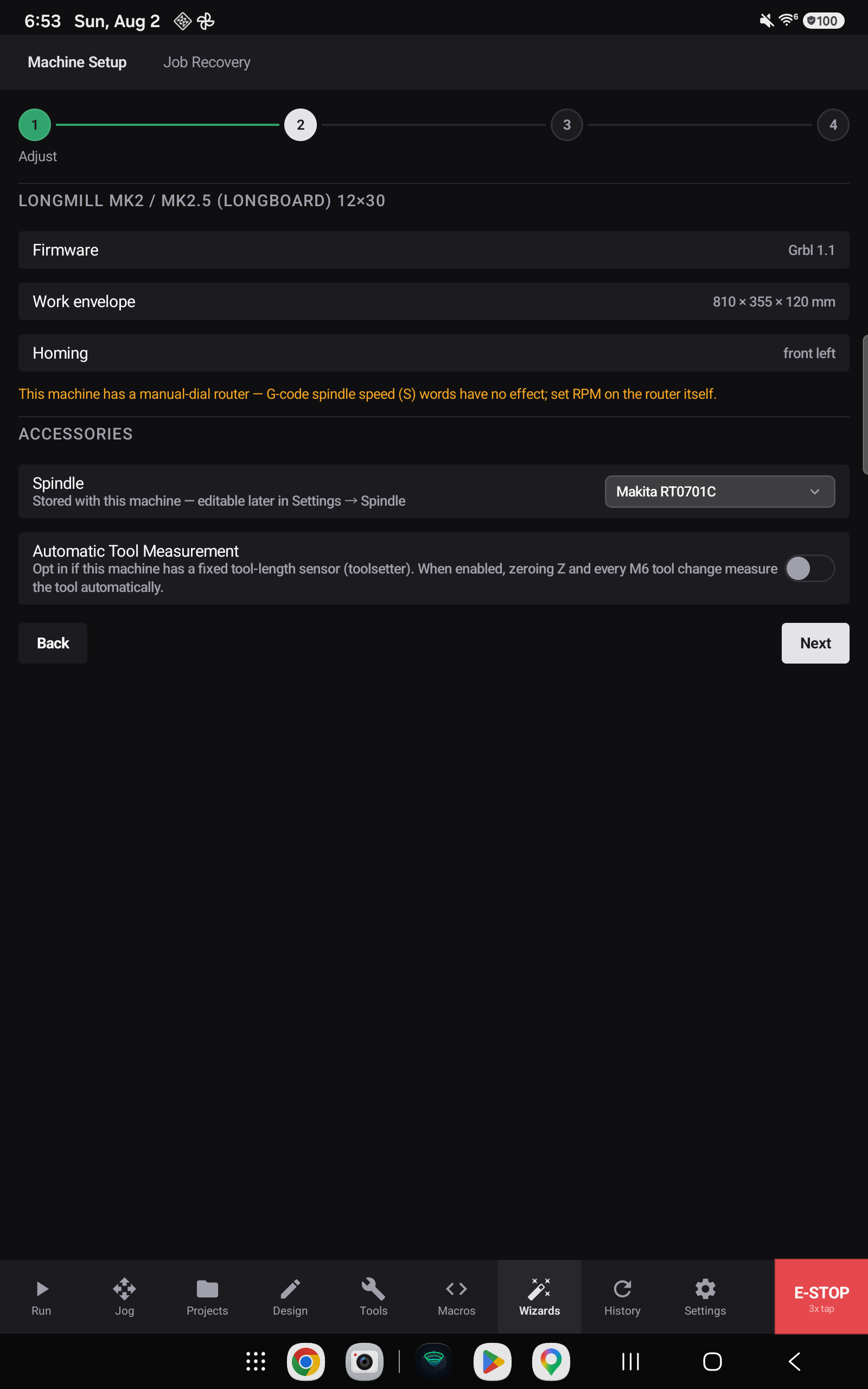
The second step shows you what the profile now believes, before you commit to it:

Firmware, the work envelope in millimetres, and which corner this machine homes to. Check the envelope against your machine — this is the last comfortable moment to catch a wrong variant.
Warnings about your machine

Where a machine has a limitation worth knowing before you cut, the wizard says so here rather than letting you discover it mid-job.
The most common one concerns spindle control. Prime Motion distinguishes five kinds — software PWM, relay on/off, manual dial, VFD 0-10 V, and VFD over RS-485 — and a large share of hobby CNC routers are manual-dial. On those machines, spindle speed (S) words in a program do nothing at all: you set RPM by hand on the router. The app tells you outright instead of accepting an S word and pretending it worked.
Spindle

Pick the router or spindle actually fitted. It is stored with the machine and can be changed later in Settings → Spindle.
Automatic tool measurement

Turn this on only if the machine has a fixed tool-length sensor — a toolsetter mounted on the table. With it enabled, zeroing Z and every M6 tool change measure the tool automatically.
Step 3 — name it, and activate

The name defaults to the model, and you can change it to whatever you actually call the machine.
This is not cosmetic. The name you give it is what appears on the bed in the Run screen's 3D view, and in the machine selector when you have more than one profile:
Finish — Activate Machine saves the profile and makes it the active one.

Step 4 — active
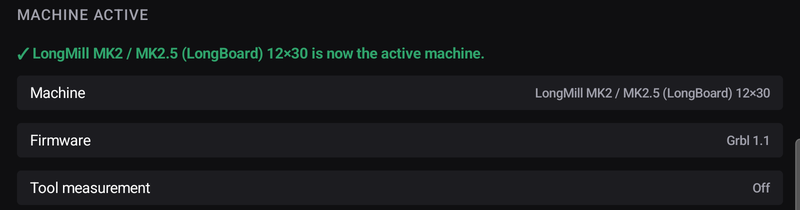
A confirmation of what is now live: the machine and variant, its firmware, and whether automatic tool measurement is on. Finish Setup closes the wizard.
Finish Setup closes the wizard and takes you to Jog — deliberately, because Jog is where homing happens, and homing is the next thing a new machine needs.
What choosing a machine actually does
Picking a listed model is a shortcut, not a formality. It pre-fills:
- Travel limits for each axis, in the variant you own — many of these machines come in several bed sizes and with different Z assemblies, so the wizard asks which.
- The homing corner — where your machine parks after
$H. This is what positions the origin glyph on the Run screen, and it differs by manufacturer. - Spindle control — whether the spindle is commanded by the controller or set by hand on a dial, and its speed range.
- Accessories — whether the machine has a tool setter, a probe, and so on. This is what stops the app offering routines your machine cannot perform.
- Known quirks of that controller.
The wizard
Machine setup runs in four steps, starting with the manufacturer and model, and finishing with a profile you can connect with. Job Recovery, the wizard's other tab, is a separate tool for picking up a run that was interrupted — see Recovering an interrupted job.