 PRIME MOTION
Checking the footprint with Outline
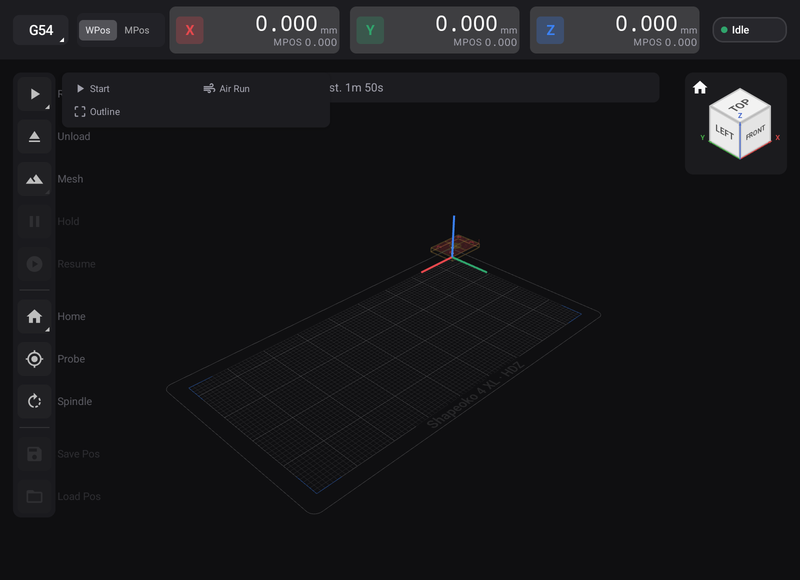
On Control, tap Run in the left rail to open Start, Air Run and Outline. Opening this panel sends no motion. Outline traces the loaded job's XY footprint at Safe Z Height, then returns to the starting XY position at that safe height. The spindle stays off.
Loading or selecting a file does not move the machine. Connecting, opening Control, preparing recovery or finishing a job does not start an outline either. Outline runs only when you tap it.
Before you tap it
Connect your controller over USB, select the correct machine profile and home if homing switches are fitted. Secure the stock, fit the tool and set work zero at the origin used by the program. Check the loaded filename, stock position and Safety result on Control.
Check Safe Z Height in Settings → Connection. It is a machine coordinate, not a height measured above the stock. Make sure the cutter, holder and gantry clear all clamps and stay within travel.
Trace and inspect
- Load the checked program from Projects. Loading prepares the preview without motion.
- Keep the machine clear. On Control, tap Run, then explicitly choose Outline.
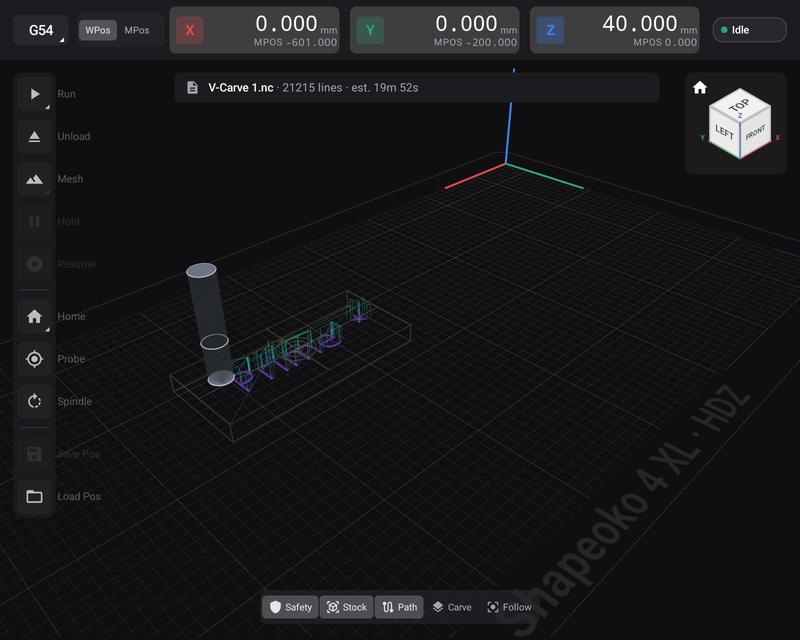
- Watch the safe-Z retract, the XY boundary trace and the return. Check that the footprint sits where you expect on the stock and clears the workholding.
- If it is misplaced, correct the work zero or setup and inspect again before any rehearsal or cut.
STOP, Hold and E-STOP each end the whole outline sequence; no later trace segment is sent. Hold ends an outline rather than leaving a boundary trace to resume. After resolving why you stopped, check the setup and explicitly choose Run → Outline again if another trace is needed.
Outline and Air Run
| Check | What moves | What to allow for |
|---|---|---|
| Outline | The job's XY footprint at safe Z; spindle off | A seconds-long check that the job fits the stock and clears the clamps |
| Air Run | Every program move with its configured clearance and spindle suppression | A rehearsal that takes as long as the job, including tool changes |
After the footprint check, open Run, select Air Run, then reopen Run and choose Start to rehearse the whole program. Check its clearance and spindle-suppression settings first. Turn Air Run off afterwards, recheck the stock, tool and zero, then explicitly choose Run → Start for the cut.