 PRIME MOTION
First launch
Open Prime Motion for the first time and most of the app is unavailable. That is deliberate, and it resolves in about two minutes.
Only Wizards, at first
Until Prime Motion knows what machine it is talking to, it will not offer you anything that can move one. It cannot check travel limits, soft limits or a homing cycle against a machine it has never heard of, so it does not pretend to.
Wizards is the way in, and it is where the app opens until a machine exists.
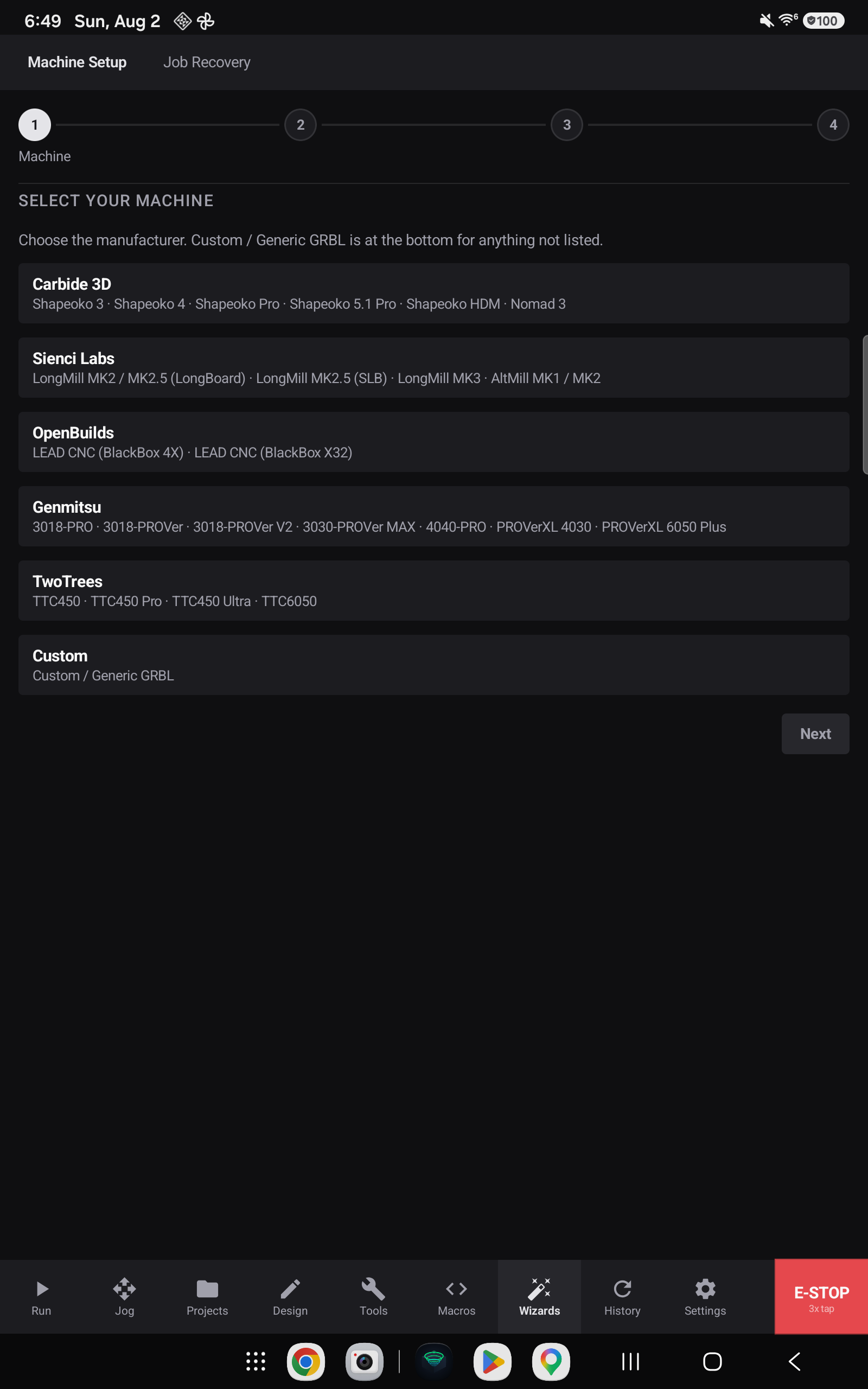
Until the machine is homed, the tab row itself says what is available — anything that could cause motion stays dim:

Where it opens afterwards
Once a machine is set up, Prime Motion always opens on Jog — every time, whatever you were doing when you closed it. Jog is where you move the machine, and that is the thing worth having under your hand the moment the app is up. Whatever design you were working on is still there, waiting on the Design tab.
Tell it about your machine
Wizards → Machine Setup walks through four steps: manufacturer, model and variant, accessories, and a name. Six manufacturers are pre-configured, and Custom / Generic GRBL covers anything else that runs Grbl.
Full detail: Machine profiles and the setup wizard.
Then connect, then home
With a profile saved:
- Settings → Connection — plug the controller into your device's USB port and connect.
- Jog → Home. The rest of the app comes up once the machine knows where it is.
That second step is the one that unlocks Run, Projects, Macros and History — see the homing gate.
What you can do straight away
The Design, Manufacturing and Parameters tabs are never gated. You can model a part and generate toolpaths before you have a machine profile at all, and connect only when it is time to cut.