 PRIME MOTION
Single-block running and resuming after a move
Single Block: one block at a time
Single-block running stops the program after each block so you can check every move before the next one. It is how you prove out a new program on a part you cannot afford to scrap, or creep up on the first plunge.
Single Block appears in the command rail once a job is running. It is available while the job is running, held or spinning up its spindle.
- To step from the first block, turn on Single Step Mode in Settings → Sender, then load the program and tap Start.
- Single Block is lit while armed, and Hold and Resume become Step and Back.
- Tap Step to run the next block. The machine runs it and stops.
- Keep tapping Step, watching each move.
- To carry on normally after a block has finished, tap Single Block again to disarm it. The remaining blocks start automatically; keep clear before turning it off.
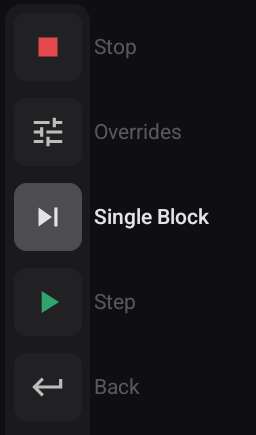
Back steps the program back one block, so the next Step runs that block again. It does not undo a move: the material that block cut is already gone.
Resuming after the machine has moved
When you Hold a job, Prime Motion records where the machine paused. When you tap Resume, it checks that the machine is still there. If it is not, resuming would carry on cutting from the wrong place, so the resume is refused and the rail offers two choices in place of Hold and Resume:
- Return — moves the machine back to where the job paused, in three moves: Z up to the safe height, across in X and Y, then Z down. Then the job continues. Each move must be confirmed by the controller; if one is refused, the sequence stops and the job stays held.
- Resume anyway — continues from where the machine is now. Use it only if you moved the machine on purpose and know the program's next move is safe from here.
The Notes card records what happened, including how far the machine was from the pause point. Return is offered only when the pause point is known; after a reconnect or a recovered job, only Resume anyway is.
The safe height for Return is Safe Z Height in Settings → Connection.