 PRIME MOTION
Macros
A macro is a piece of G-code behind a button. Prime Motion ships a set of them for the jobs every operator does constantly — probing an edge, setting work zero, homing, clearing an alarm — and you can add your own.
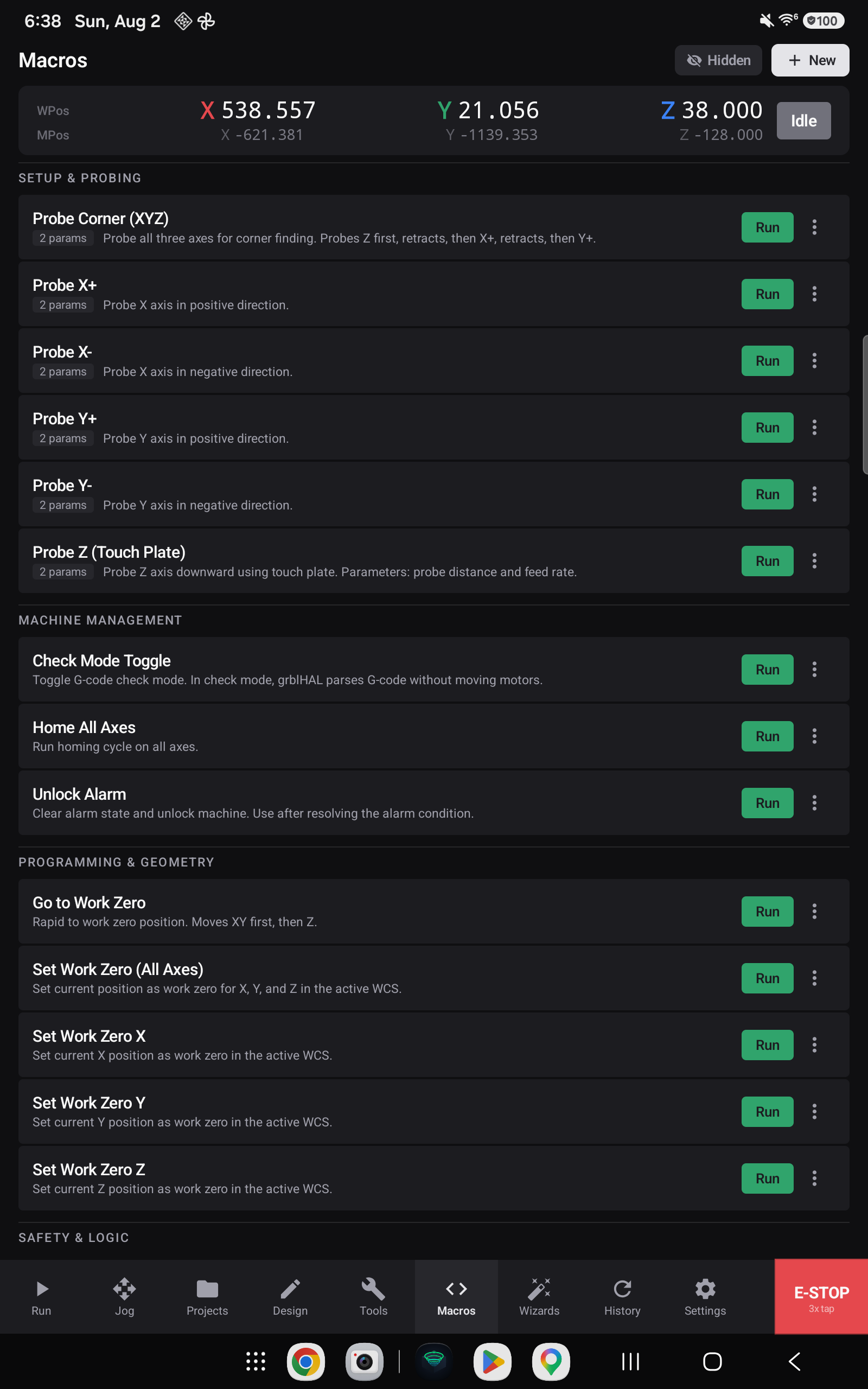
The machine position stays on screen

The readout sits at the top of this screen for a reason: most macros move the machine, and several of them exist to change what the numbers mean. Setting work zero is only meaningful if you can see where the machine is when you set it.
What ships with the app
Seventeen macros are included, grouped by what they are for. The G-code each one sends is listed too — a macro is not a black box, and knowing what it will do is the point.
Setup & probing
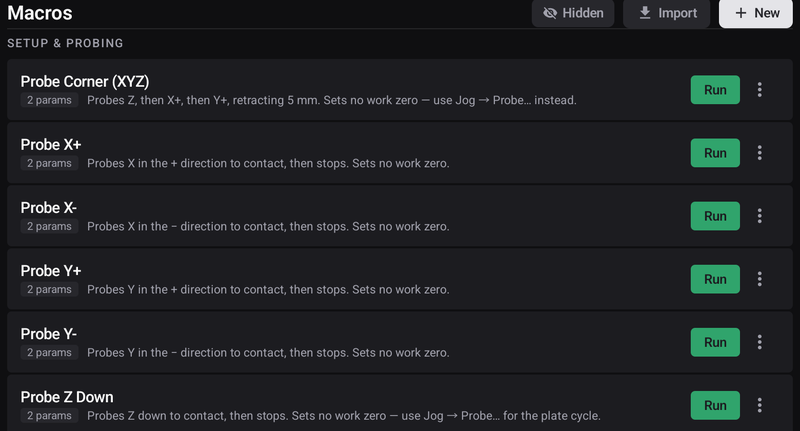
All six take the same two parameters: probeDistance (how far to travel before giving up, default 25 mm) and feedRate (how gently to approach, default 100 mm/min).
| Macro | What it does | Sends |
|---|---|---|
| Probe Z Down | Probes downward until the probe input closes | G21 G91 G38.2 Z-<dist> F<feed> |
| Probe X+ | Probes in the positive X direction | G21 G91 G38.2 X<dist> F<feed> |
| Probe X− | Probes in the negative X direction | G21 G91 G38.2 X-<dist> F<feed> |
| Probe Y+ | Probes in the positive Y direction | G21 G91 G38.2 Y<dist> F<feed> |
| Probe Y− | Probes in the negative Y direction | G21 G91 G38.2 Y-<dist> F<feed> |
| Probe Corner (XYZ) | Probes Z, retracts, probes X, retracts, then probes Y | G21 G91 G38.2 on each axis with pinned G0 retracts between |
Each line carries G21 G91 in the same block as the motion — its units and its distance mode, inline. A closing G21 G90 hands the controller back its absolute frame.
Machine management
| Macro | What it does | Sends |
|---|---|---|
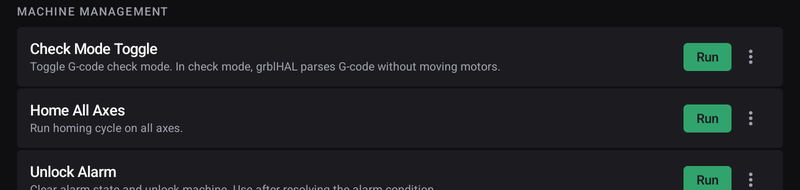
| Home All Axes | Runs the homing cycle | $H |
| Unlock Alarm | Clears the alarm state so the machine will accept motion again | $X |
| Check Mode Toggle | Turns G-code check mode on or off | $C |
Programming & geometry
| Macro | What it does | Sends |
|---|---|---|
| Set Work Zero (All Axes) | Sets the current position as work zero for X, Y and Z | G21 G90 G10 L20 P1 X0 Y0 Z0 |
| Set Work Zero X | Sets work zero on X only | G21 G90 G10 L20 P1 X0 |
| Set Work Zero Y | Sets work zero on Y only | G21 G90 G10 L20 P1 Y0 |
| Set Work Zero Z | Sets work zero on Z only | G21 G90 G10 L20 P1 Z0 |
| Go to Work Zero | Rapids to work zero — XY first, then Z | G21 G90 G0 X0 Y0 then G21 G90 G0 Z0 |
Safety & logic
These three send real-time control characters, which the controller acts on immediately — they are not queued behind whatever is already buffered.
| Macro | What it does | Sends |
|---|---|---|
| Soft Reset | Stops motion and clears anything the controller still had queued up | Ctrl-X (0x18) |
| Feed Hold | Pauses motion with controlled deceleration | ! |
| Cycle Resume | Continues after a feed hold | ~ |
Macros that take parameters

A macro marked 2 params asks for values before it runs. The probing macros use this: probe distance and feed rate are not things the app should decide for you, since they depend on how far away the surface is and how gently you want to approach it.
Each parameter has a name, an explanation, and a sensible default, so running one is a matter of confirming or adjusting rather than inventing numbers. Parameters may be whole numbers, decimals or text depending on what the routine needs.
Writing your own
You are not limited to the seventeen. + New creates a macro of your own: a name, a description, the G-code body, and any parameters you want it to ask for before running.
Parameters are referenced in the body as #1, #2 and so on, in the order you define them, and each one carries a name, an explanation and a default — so the macro asks a sensible question rather than demanding a number out of nowhere. A parameter can be a whole number, a decimal, or text.
Good candidates are the things you do the same way every time: parking the gantry where you like it, a spoilboard surfacing pass, a tool-change position that suits your shop, a warm-up routine.
Built-in macros cannot be edited or deleted
This is deliberate, and it is the difference between the two kinds:
| Built-in | Your own | |
|---|---|---|
| Run | Yes | Yes |
| Hide / Show | Yes | Yes |
| Edit | No | Yes |
| Delete | No | Yes |
A built-in macro is a known-good routine that other parts of the app and the documentation refer to. If one is in your way, hide it rather than losing it.
Hiding what you do not use
The macro list is long by design. Hide on a row's menu takes it out of the list, and the Hidden control in the header brings hidden macros back into view so you can restore them.
Related
- The homing gate — why this tab is locked before homing
- Probing
- Setting work zero