 PRIME MOTION
Portrait and landscape
Prime Motion adapts to the way you hold your tablet. Portrait puts the controls below the main view. Landscape gives the view more width and puts the Control cards beside it.
If the screen does not turn, enable auto-rotate in the tablet's Android settings.
Control in portrait
The position readout runs across the top. The command rail sits on the left of the machine view. Below the view, Location and Jog sit together, followed by Run Information and Notes. The navigation bar spans the bottom edge.
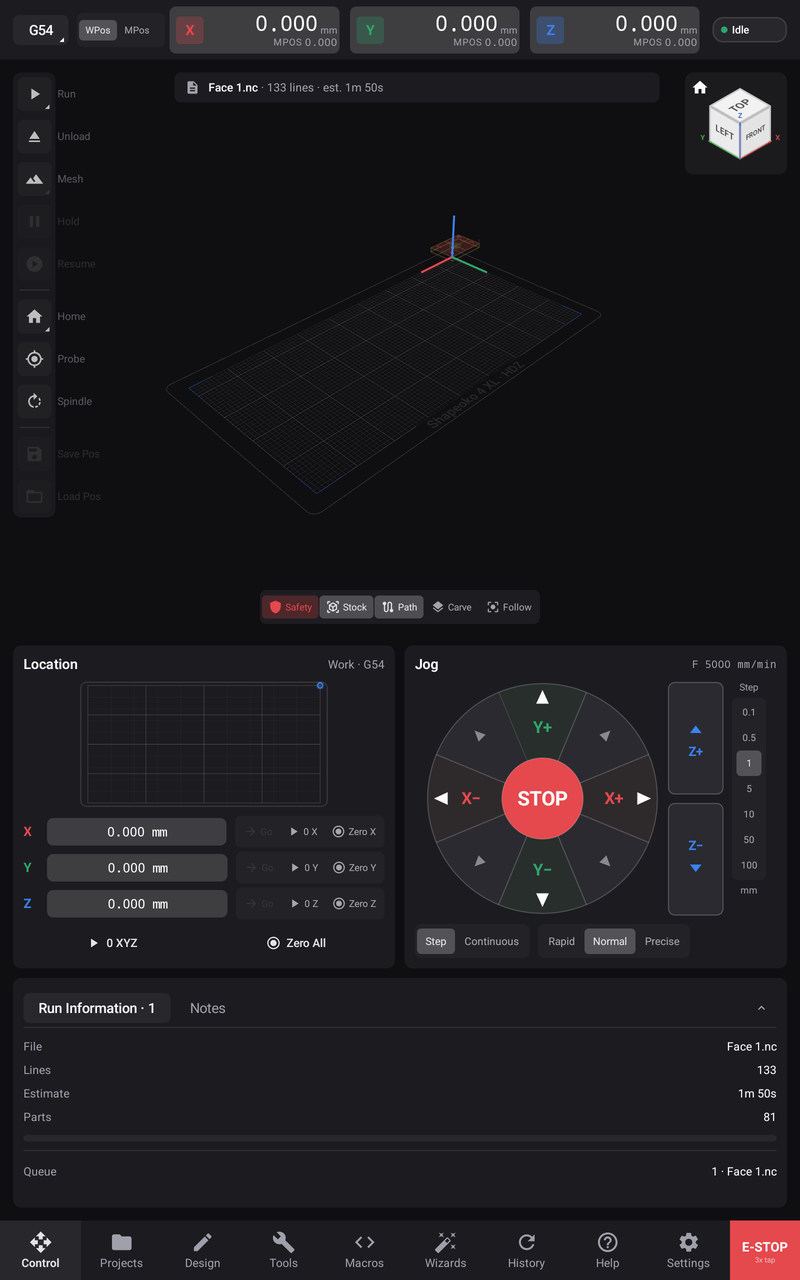
This example has no program loaded. The file banner tells you to select a file from Projects. Your machine's state and loaded program determine which rail commands are available; rotating the tablet does not unlock a command.
Control in landscape
The machine view occupies the left side and the cards move into a column on the right. Scroll that column to reach cards lower down. The navigation dock sits below the machine view, centred on the space left beside the cards.
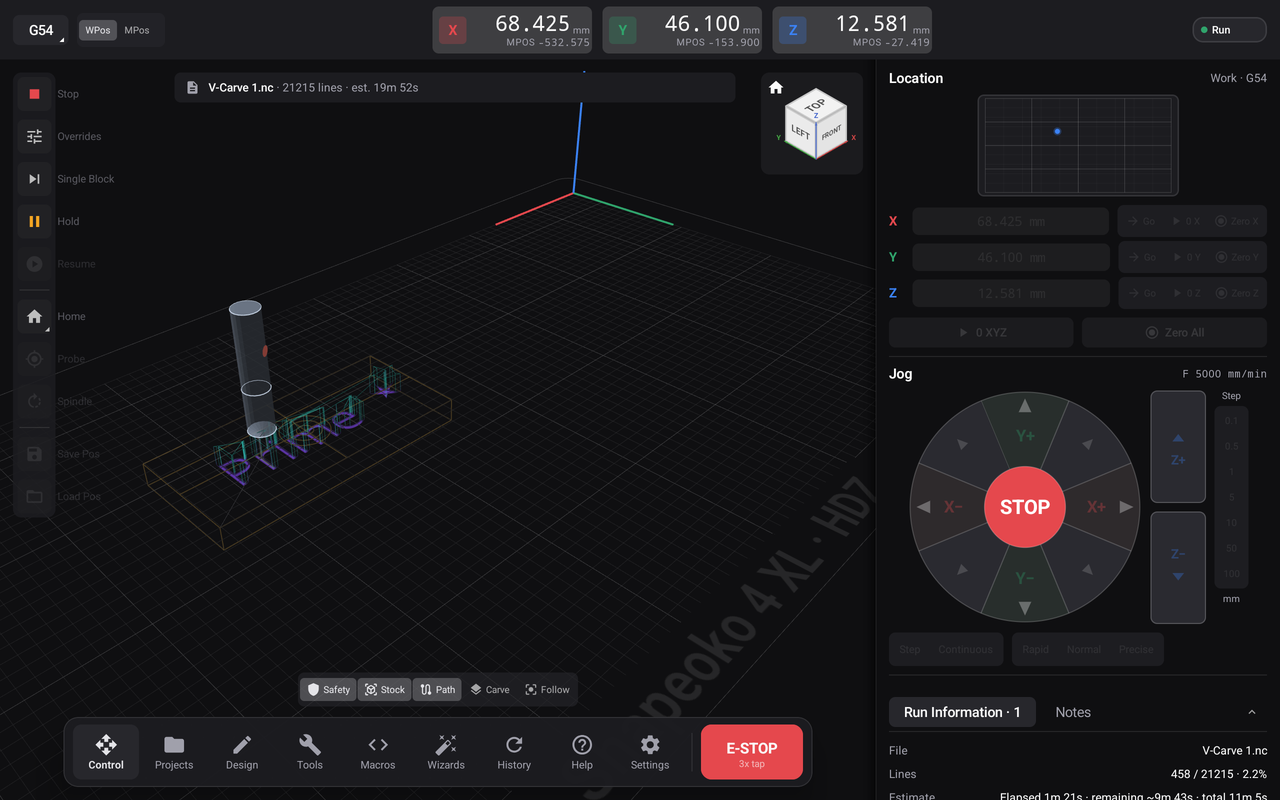
The Location card, jog directions, step choices, and STOP remain the same controls. The position readout stays at the top of the screen. Use the Control screen for what each command does, and setting work zero for the difference between changing a coordinate and moving the machine.
Design and its panels
Design still contains the Design, Manufacturing, and Parameters workspaces in both orientations. Those workspace tabs appear after you open or create a design; an empty library does not show them. Start in the Designs panel.
A tool opens its own panel over the workspace. Read the panel's title and selected geometry before applying the command. Close the panel with its × when you want to return to the view.