 PRIME MOTION
Remote access and the control seat
Remote access shows the tablet's Control screen, live, in a web browser on a phone, a laptop or a desktop on the same Wi-Fi network. A paired browser can watch a job from across the shop, and, while it holds the control seat, operate the screen exactly as you would on the tablet.
The tablet stays in charge. Only one browser can operate the screen at a time, any touch on the tablet takes control straight back, and every stop works from every paired browser whether or not it holds the seat.
What you need
- The tablet and the other device on the same Wi-Fi network.
- A modern web browser. Nothing is installed on the other device.
Turn it on
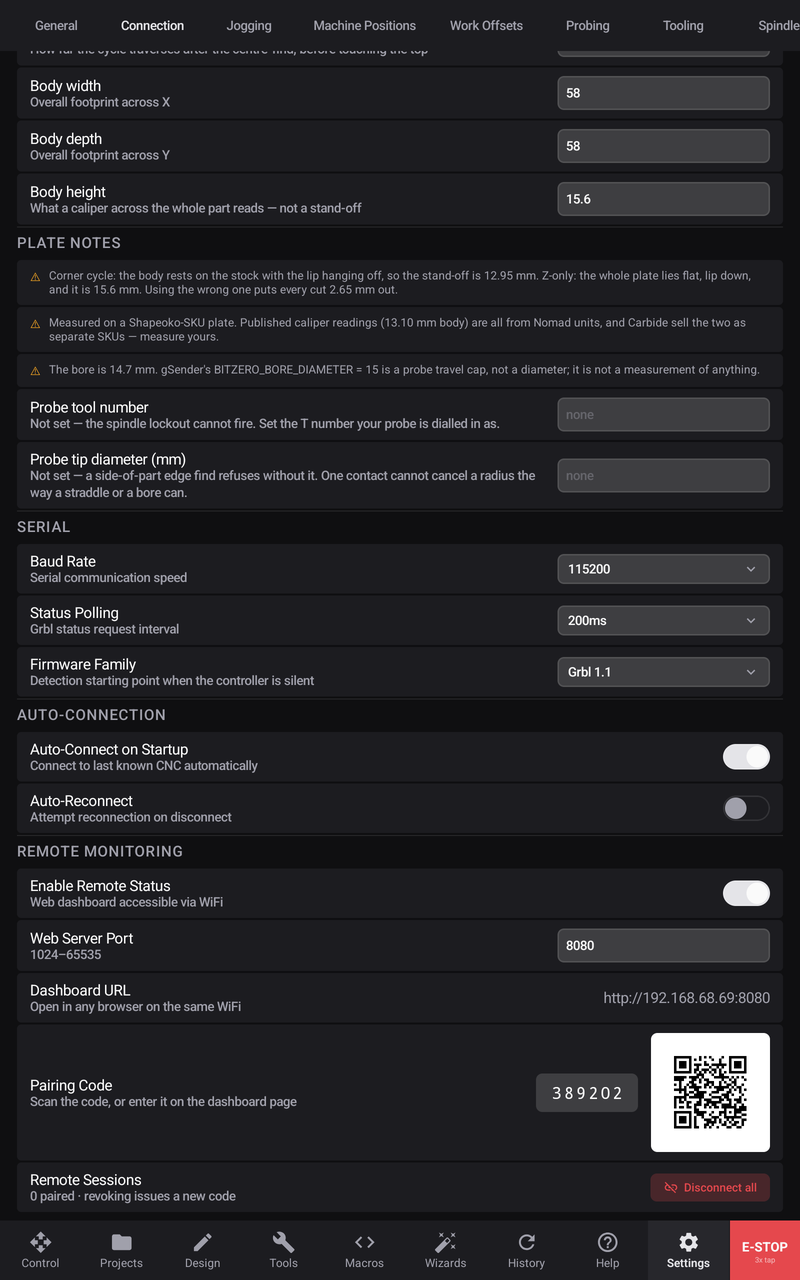
- Open Settings → Connection and scroll to Remote Monitoring.
- Turn on Enable Remote Status. Android shows a Remote monitoring on notification while it runs.
- Leave Web Server Port at 8080 unless something else on your network uses it. Any port from 1024 to 65535 works.
- Note the Dashboard URL, such as
http://192.168.1.20:8080. It reads WiFi not connected when the tablet has no Wi-Fi address.
Pair a browser
Every browser must be paired with the tablet's current six-digit Pairing Code before it sees anything.
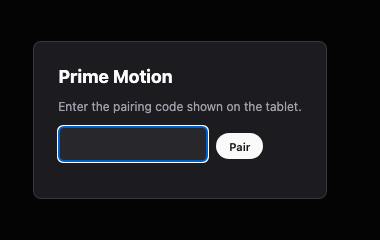
- On the other device, open the Dashboard URL in the browser, or scan the QR code beside the pairing code with a phone's camera.
- The page asks you to Enter the pairing code shown on the tablet. Scanning the QR code fills it in for you.
- Tap Pair.
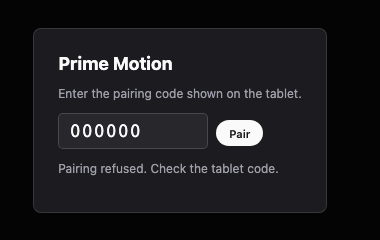
A wrong code shows Pairing refused. Check the tablet code.
Ten attempts in a minute are refused even with the right code, to stop guessing; wait a minute and try again.
A pairing lasts for that browser tab. A tab left idle for 30 minutes must pair again, and so must every browser after the tablet issues a new code.
What the browser shows
The browser shows the tablet's Control screen in its portrait layout, as a live picture, scaled to fit the window with dark bars beside it. It always shows Control, whatever tab you have open on the tablet itself.
The bar under the picture is the seat bar:
| Seat bar reads | Meaning |
|---|---|
| View only | Paired and watching. You can stop the machine but operate nothing else. |
| You have control | This browser holds the control seat. |
| Another controller holds the seat | You tapped Take control while another browser had it. |
| Disconnected | The link to the tablet dropped. The page reconnects by itself. |
The control seat
Take control gives this browser the seat. While you hold it, the picture behaves like the tablet's own screen: tap, drag and pinch with a finger on a phone; click, drag and scroll with a mouse on a desktop. Release control gives the seat up.

Only one browser holds the seat at a time. A browser holding it shows on the tablet as a strip under the position readout, such as Remote control · Chrome · Android, with a Take control button. While browsers are paired but none holds the seat, the strip reads Remote browser connected.

The tablet always wins
Any touch anywhere on the tablet takes control back at once. The browser drops to View only, and anything it was doing, including a jog, is cancelled. The browser must tap Take control again to carry on.
Stops work from every browser
Every paired browser, holding the seat or not, can always:
- tap E-STOP, three times, as on the tablet;
- tap Stop or Hold in the command rail;
- tap STOP in the centre of the jog pad.
Every other input from a browser without the seat is ignored.
If the connection drops during a jog
A browser holding a jog button keeps the machine moving only while the tablet keeps hearing from it. If the link goes quiet for about a third of a second, the jog is cancelled. If it stays quiet for two seconds, the browser loses the seat. Closing the tab, switching away from it, or the phone sleeping does the same. A dropped Wi-Fi link therefore stops a remote jog rather than leaving the machine moving.
Disconnect everyone
Remote Sessions in Settings → Connection counts the paired browsers and names any that has control. Disconnect all drops every paired browser and issues a new pairing code, so the old code no longer works. Each browser returns to the pairing dialog.
A new code is also issued whenever remote access restarts: switching Enable Remote Status off and on, changing the port, or restarting the app.
Troubleshooting
| What you see | What to check |
|---|---|
| The page never loads | Both devices on the same Wi-Fi network; the address and port exactly as Dashboard URL shows |
| Dashboard URL reads WiFi not connected | The tablet's Wi-Fi |
| Pairing refused. Check the tablet code. | The code on the tablet now; a new code after Disconnect all or a restart; wait a minute after many attempts |
| Taps do nothing | The seat bar: View only means you need Take control |
| You lose control suddenly | Someone touched the tablet, or the link dropped |
Still stuck? Contact support@primemotioncnc.com with what the seat bar and Remote Sessions show.