 PRIME MOTION
Tags and sorting
Folders decide where you keep a design. Tags describe it, and sorting changes the order of the tiles. Use all three to find work without making extra copies.
Add or remove a tag
Open a design tile's ⋮ menu and choose Edit. In Tags, type a label and press Enter to add it. Repeat for another label. Remove an existing tag with the × on its chip, then choose Save to keep your edits.
For example, tag a fixture showcase, aluminium, or needs review. The same design can carry several tags while staying in its original folder.
Filter by a tag
Open Tags: All above the tiles and choose a tag. The panel shows matching designs in the current folder. Choose All again to remove the filter.
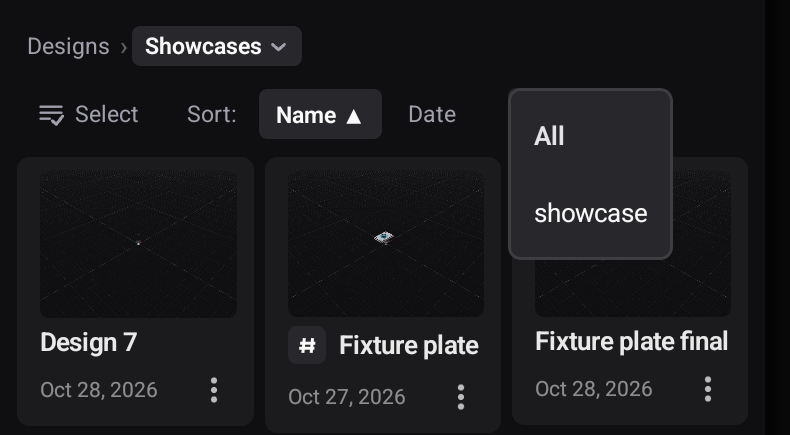
Entering another folder clears the tag filter. Check the breadcrumb as well as the filter when looking for a missing design: filtering one folder does not search the whole library.
Sort by name or date
Tap Name for alphabetical order or Date for date order. The active control shows an arrow. Tap it again to reverse the direction.
| Control | First tap | Tap again |
|---|---|---|
| Name | A to Z | Z to A |
| Date | Newest first | Oldest first |
The date on a tile is the design's recorded update date. Use Date to find recent work and Name when you know what you called it. Sorting changes the display order; it does not move designs between folders.